


オルクログ BLOG
2026.08.04
Recommended Cameras for First-Person POV Filming 👀
Hello!
This is Iwamoto from OLQ 👀
This time, I would like to introduce cameras that are easy for on-screen presenters to use without requiring complicated operation.
In short, these are「cameras you can confidently hand over to your presenter」
If you're looking to capture footage with a personal, first-person perspective and a natural, private feel, we hope you'll consider renting one of the following cameras 👀
DJI OSMO Pocket3 Creator Combo
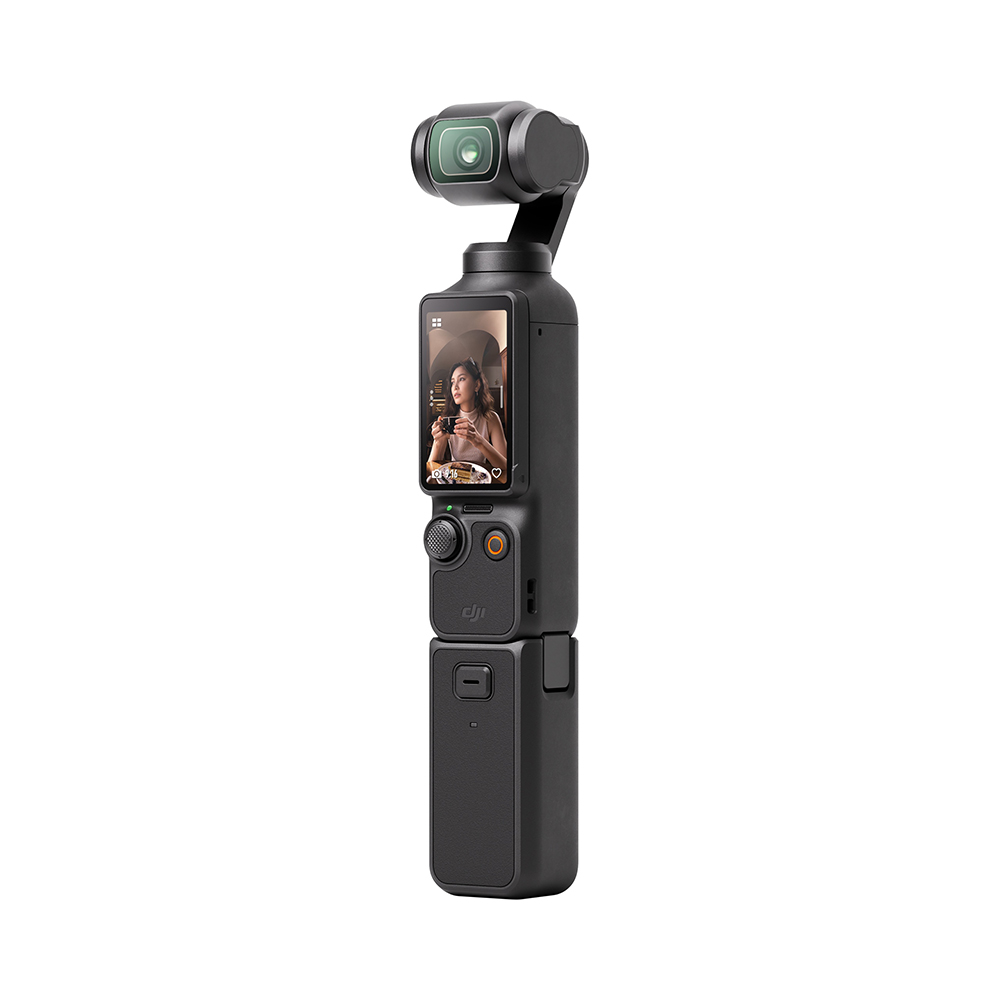
This is the third generation Pocket series model from DJI, one of the world's leading drone manufacturers.
Because the camera and gimbal are integrated into a single unit, your footage remains stable even when walking.
Since it's an all-in-one design, there is no need to spend time mounting a camera onto a separate gimbal before shooting.
【Basic specifications and rental information↓】
DJI OSMO Pocket3 Creator Combo
Why it's easy for presenter to use
💡 Extremely fast startup
Simply rotate the screen horizontally, and the camera powers on.
Recording is just as easy: press the red button below the screen, and it starts recording immediately whenever inspiration strikers!
💡 No need to constantly think about the camera
The camera can recognize and continuously track your face, so you don't have to worry about camera direction or framing.
Of course, if you need a specific angle, you'll still have to position it accordingly, but for general use, the camera will automatically follow the subject even if you lower your hand or walk around while talking!
Aspects to keep in mind
🚨Handle with care
The gimbal section supports pan (left and right), tilt (up and down), roll (rotation), so it needs to be protected from impact and excessive pressure.
If the gimbal is damaged, you may see a message saying "Gimbal movement limit reached" after startup, causing the camera to shut down.
✅Checklist before handing it over
・Bring the dedicated mini tripod or protective case.
→The camera cannot stand on its own. It also can't simply be placed sideways like a smartphone, so it should either be attached to the dedicated mini tripod or stored in its protective case.
・Perform calibration (horizontal alignment).
→If the camera appears tilted after startup or after vigorous movement, you'll need to recalibrate the horizon.
・Be familiar with the「Auto Power Off」function.
→The camera does not turn off when recording, but in case it is left idle without recording for some period of time, it turns itself off.
Proper adjustment of the auto shutdown setting or completely turning off "Auto Power Off" can bring additional comfort!
Apple iPhone
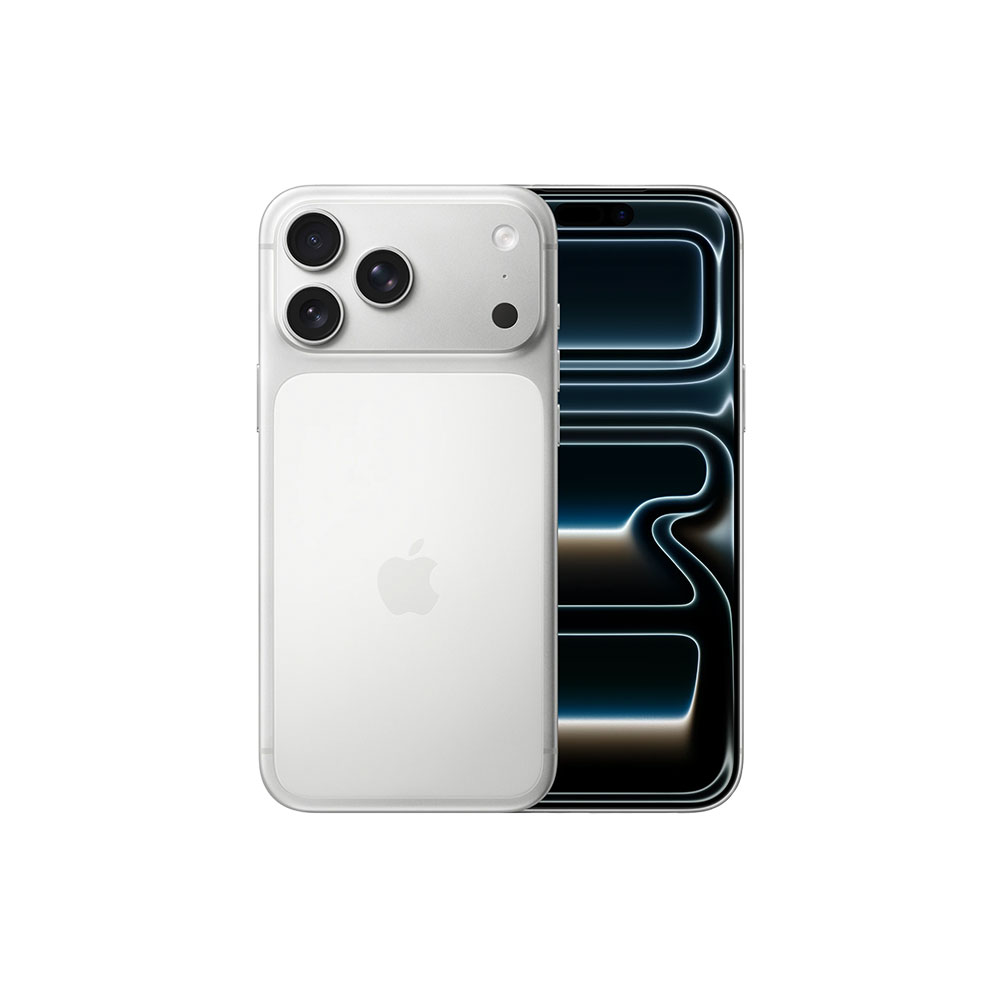
Personally, this takes the #1 spot.
Most of the iPhone models we offer come with 1TB of storage, making them ideal for video production without worrying about running out of space.
【Basic specifications and rental information↓】
Apple iPhone Series (We also rent iPads!)
Why it's easy for presenter to use
💡 Take photos "just as you normally would"
One of its biggest strengths is that it doesn't really feel like you're operating filming equipment! You can simply start recording the same way you normally use your phone, making it perfect for creating a natural, personal atmosphere!
Reviewing footage is equally familiar; just open the Photos app.
Another major advantage is that you can achieve excellent image quality without having to adjust detailed settings.
Aspects to keep in mind
🚨 Startup is slightly slower
If the screen is off, it takes an extra moment to launch the Camera app.Personally, when I suddenly want to capture something, it feels like there are a few extra steps before I can actually start recording.
For me, it's usually:
Turn on the phone → swipe to the Camera app → tap the Camera app → adjust the framing.
Compared to the DJI Osmo Pocket 3 introduced earlier, it feels like there are surprisingly more actions before you can begin filming.
🚨The footage can sometimes feel less three-dimensional
From a technical standpoint, the iPhone applies fairly strong image processing, such as HDR connection, sharpening, and noise reduction, to produce cleaner-looking footage.
As a result, while the overall image is very polished and easy to watch, the difference in texture between the subject and the background can become somewhat uniform.
Some people may also find the simulated background blur (iris effect) slightly unnatural. That's more of a technical observation, though.
✅Checklist before handing it over
・Check for software updates
→Minor bug fixes included in updates may sometimes affect the camera function. It’s a good idea to check the update details just to be on the safe side!
※Please note that all iPhone models we supply are delivered with the latest software update installed.
・Check the camera settings
If you'd like to change the recording resolution or frame rate, you'll need to adjust the Camera settings within the Settings app.
DJI OSMO ACTION5
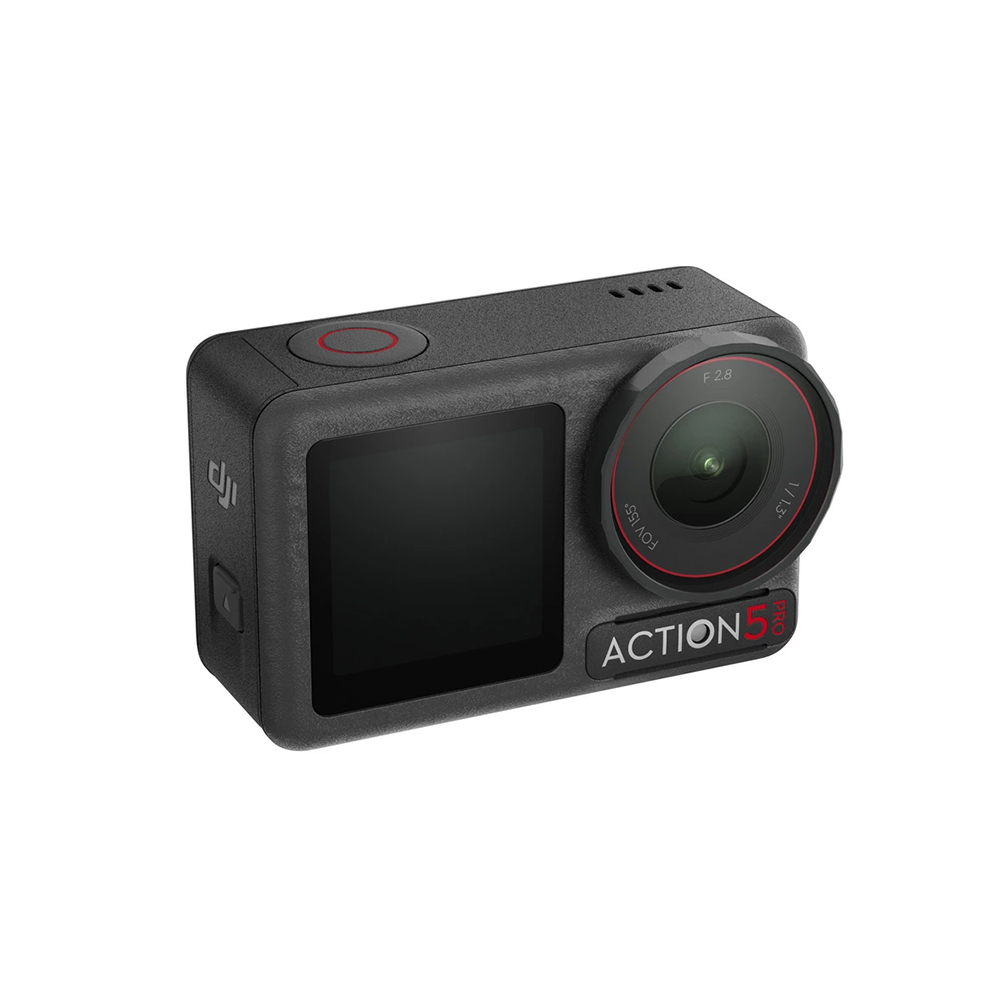
Following the DJI Osmo Pocket 3, this is DJI's wearable action camera.
If durability and action shooting are your priorities, it's an excellent choice.
It performs reliably even during outdoor filming or scenes with lots of movement.
【Basic specifications and rental information↓】
Why it's easy for presenter to use
💡Excellent battery life
You can confidently use it for long recording sessions!
According to DJI's testing, it can record for up to 4 hours at 1080p / 24fps.
We've also heard from users that even in 4K recording, it generally lasts around 2 hours, reducing the need for frequent battery swaps or external power.
💡Less likely to overheat
Some users worry about overheating during long shoots or in hot environments. Compared to GoPro models such as the GoPro HERO13 Black, the Action 5 Pro has shown a lower tendency to shut down due to heat.
弊It can also be used together with the『 Mobile Battery [PowerCore Fusion 10000 [9700mAh] 』, mobile battery that we rent, and we have not experienced overheating shutdowns.
However, when using external power together with the internal battery, recording will stop once the internal battery reaches 0%.
Even while external power is connected, the camera appears to prioritize using its internal battery first, with the external source functioning mainly as a charging supply.
Aspects to keep in mind
🚨Limited places to hold it
Be careful if you're holding the camera directly!
Touching the area around the front lens can easily leave fingerprints, which may affect your footage.
Since most of the back is occupied by the display, the sides of the camera are essentially the only comfortable place to grip.
If you're handing it to a presenter for handheld shooting, it's much easier to use when accessories such as a grip, extension rod, or helmet mount are already attached.
We recommend preparing the camera with its accessories before handing it over!
☝️Recommended accessories
OSMO ACTION [1.5m] Extension Rod Kit
Ideal for selfies and shooting from a variety of angles.
Bi Rod 6C-4500 + Dedicated Tripod Set
When extra height is needed, this tripod rod extends up to 4.5 meters.
Helmet [Wearable Camera Mount Version]
Keeps both hands free while capturing immersive first-person footage.
✅Checklist before handing it over
・Choose between internal storage and memory card recording.
You can select where your footage will be saved.
① Internal storage (approximately 47GB)
② MicroSD Card
It's a good idea to confirm in advance which storage location you'll be using.
・Enable Orientation Lock
Turning this on locks the image orientation, which is especially helpful during vigorous movement.
・Be familiar with the「Auto Power Off」function.
Just like the DJI Osmo Pocket 3, understanding the Auto Power Off setting helps prevent surprises.
That's all!
This concludes our introduction to「cameras you can confidently hand over to your presenter」.
The cameras featured today are all easy to use and are popular choices for vlogs and solo content creation as well!
We hope these points help you choose the camera that's right for your next project.
If you found this article helpful, we'd be very happy. See you again in the next article, and thank you for reading!
ーーーーーーーーーーーーーーーーーーーーーーーー
If you're considering using our services for the first time, please register as a member through our EC website and fill in the required information.
Whether you'd like to rent equipment or simply discuss your project first, please don't hesitate to contact us!